Sunday, August 1, 2010

RAID


RAID stands for Redundant Array of Inexpensive/Independent Disks.
RAID allows a user to store data in multiple places at a time(redundancy) in a balanced way so as to improve performance and data retrieval. It stores the data on multiple hard disks and then combines them into a high performance logical unit where all the drives in the unit are interdependent thus improving Input/Output performance. To put it in simple words, data is spread over different disks but to the operating system and the user, it would appear as if the data is present in one disk only.
An example of improved performance: One set of data is being written to one disk and at the same time another set of data is being retrieved from another hard disk thus speeding up the input/output process.

Thus with RAID we can have:

1) Higher data transfer rate on large data accesses
2) Higher Input/Output rates on small data accesses


Now the question arises "How is the data written to the disks?"

There are several ways of doing this but I shall discuss only 2 of them: Block-level Striping and Mirroring.

Block-level Striping(Raid 0)

In this case, chunks of data is written to different disks. Each disk's storage space is partitioned into "units ranging from a sector(512 bytes) up to several megabytes" (taken from http://searchstorage.techtarget.com/sDefinition/0,,sid5_gci214332,00.html)
Supposing we have a data consisting of 6 parts(D1,D2,D3,D4,D5 and D6). Parts D1,D3 and D5 will be stored in disk 1 whereas D2,D4 and D6 will be stored disk 2(they could be stored in more than 2 disks also, but I'm just giving an example here).


Advantage of this method: smaller chunks of data can be read from the drives thus increasing bandwidth as more data can be read at a time.
Disadvantage: if one disk fails, then the entire data is inaccessible.

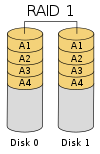
Mirroring(Raid 1)

In this case, the same data is duplicated 100% to 2 or more disks thus showing the "mirroring" aspect.


Advantage of this method: Even if one disk fails, we can still read the whole data from the other disk where the data was stored, provided it is working fine. Thus our system can still stay up and running while the affected disk is being replaced!


Those who want to know more about the other ways of doing this, check this link out

http://en.wikipedia.org/wiki/RAID#Standard_levels


Now we come to the advantages and disadvantages of using a RAID disk

Advantage:

1) They can make excellent backup drives especially when they are employed as backup devices to the main drives and particularly when they are located away from the main system.

2) It increases the performance and reliability of a system as regular checks are done to check for any possibility of a system crash

Disadvantage:

1) RAID disks are essentially designed and extensively written for servers. Thus if there is a server, there has to be a network as well and this can cause configuration issues as each network is different.

2) High cost of Purchase (doesn't cost less than a few thousand of dollars)


This post would be incomplete without any mention of WHEN do we use a RAID. It is all very well knowing what RAID does but not knowing when to apply it can be problematic in view of the high cost of purchase as mentioned above.

We can use them in mainly 3 ways:

1) Business Servers: Large business companies require a secure way of storing large amounts data without suffering any loss of the same. RAID can be used for this purpose especially if it is stored in a remote location where accidental erasure of data is pretty much impossible to do.

2) Workstations: "Individuals who are doing intensive work such as video file editing, graphical design,etc. should use a RAID" (taken from http://www.pcguide.com/ref/hdd/perf/raid/why.htm) RAID 0 will provide the improved performance needed in many of these applications (remember what I wrote earlier about improved bandwidth?).

3) Home PC: Most of us use this and we don't need RAID as the high cost of purchase is not justified by the activities we perform with the PC. It's better for us to use SATA/IDE instead (For those who don't know what SATA/IDE is, go here http://smblog.iiitd.com/2010/07/hard-disks-advantage-of-sata-over-ide.html).


Thus we can say that RAID is best used by big companies that can afford to purchase it as it gives them their money's worth over the security of their data which is a very important thing in this world.

If anyone wishes to add something else to the above, go ahead and do so =D


SOURCES:

http://en.wikipedia.org/wiki/RAID

http://www.webopedia.com/TERM/R/raid.html

http://www.ecs.umass.edu/ece/koren/architecture/Raid/raidhome.html

http://www.raid-data-recovery.net/advantages-raid.html


IMAGES:

http://en.wikipedia.org/wiki/RAID#Standard_levels

Friday, July 30, 2010

CPU-Z V/S DMIDECODE..and..HOW TO USE THEM?

I wouldn't actually call it a post being posted here because amarjeet sir wanted it to be here on the blog..After all those discussions on the first post of this blog over how to get the details of your processor,ram,OS..etc just on the click of a button....and then later over utilities like CPU-Z and DMIDECODE..this had to be there..either as my personal assignment or some question in the class or as it was destined to be..As a post..titled--CPU-Z V/S DMIDECODE..What are these actually??how do I install them and use them??...I hope I end up clearing all your doubts..


OVERVIEW:
Each computer is like a specific human being.. having a processor,ram,hard-disk,motherboard different from others in one or more ways...and getting into the details the complexity of each component increases..some of these computers might have pentium-4,some may have a dual core..the ram might vary from an obsolete SD-Ram to DDR1,2 and 3 Rams..the question is..I have all these locked under my laptop or in my cpu..how do I know what are the details of such components in the machine that I am using without any prior knowledge..


There are several ways to get to know that..however..the most user friendly ones are..

  • If you are working on a windows platform,you could just go to control panel/system...or a shortcut whould be right-clicking your MY COMPUTER icon and selecting properties and then device manager for details about each component, and driver details..

However,some OSs or some specific OS service packages do not provide the necessary information like the Ram type,or may be the the frequency of the Ram..(That's why some of you just couldn't get these details and commented for solutions on the post.

  • This one is a kind of a universal method..which includes getting the data through the SMBIOS or System Management Basic Input/output System which is actually a special software that interfaces the major hardware components of our computer with the operating system.It is usually stored on the Flash memory chip on the motherboard, but sometimes the chip is another type of ROM.


img links: http://www.washington.edu/lst/help/computing_fundamentals/troubleshootingxp/img/bios.gif
http://www.computerhope.com/help/bios4.gif

You can enter the BIOS by just pressing del or F-11,or F-12 key(depending on ur BIOS version and make) while starting up the computer before the OS boots..

However,Some BIOS interfaces from Pheonix and other firms..in some versions..do not provide the necessary,just like mine didn't.It may provide u with more than what the OS provides..but it's still not everything..
  • Now,the most important part of this post..if none of the above work,this is your key my friends..For Windows' users...this is a must have..It can provide you with information and details that Windows or even BIOS do not provide..It's actually a UTILITY(A program that performs a specific task related to the management of computer functions, resources, or files, as password...{{source answers.com}) that helps you get all the details about the following:

CPU
Name and number.
Core stepping and process.
Package.
Core voltage.
Internal and external clocks, clock multiplier.
Supported instruction sets.
Cache information. Mainboard
Vendor, model and revision.
BIOS model and date.
Chipset (northbridge and southbridge) and sensor.
Graphic interface. Memory
Frequency and timings.
Module(s) specification using SPD (Serial Presence Detect) : vendor, serial number, timings table. System
Windows and DirectX version

Source : cpuid.com

How to install this thing?? Just as simple as it can be..Download the software from http://www.cpuid.com/ for free..and just run the executable file..You'll be done.(Please don't try to validate your copy,keeping it unvalidated would do.)

Once installed,the software is user friendly to handle.Requires no input.The screen may look like as below


img source: cpuid.com

Now is the most important part...


HOW DOES THIS WORK?? AND CPU-Z V/S DMIDECODE(Linux)


To get information about a device, whatever it is (CPU, GPU, HDD ...) you have two methods:


1- Hardware level access (aka direct or raw access) or,


2- software level access: drivers, or Windows API.


Method 1 is the most accurate, provides the most precise details, but it is dangerous and requires constant updates. Method 2 is safer, less accurate and easier. CPU-Z uses method 1 for CPU information.


About why is method -1 risky?..I had to work out a simple answer.So it's about the Windows kernel system which is organised in so called rings.Ring 0 being the core of kernal..CPU-Z runs in Ring 0 to get the detailed information digged out.But all other applications we use,run in Ring 3,so if there is any error..Ring N-1(i.e. Ring 2 here.) handles the error.But if unfortunately there is an error in Ring-0.All you get is a blue screen being displayed.(However guys,you get to run CPU-Z in Ring 0 only if you are the administrator of your system.If not,it will follow method-2 and run in Ring -3,thus providing less or incorrect information)


Now,There are also other similar utilities you can try out,close to how CPU-Z works.


One of them is called SPECCY(Thanks to my buddy Apoorv Narang,Ist year, for this information)


Here's the link if anyone needs to try it out http://www.piriform.com/speccy


This is more user friendly,gives enough information about your graphics card too.....


BUT What is DMIDECODE??


First of all,this command is only for use in LINUX. DMIDECODE is actually DMI table decoder.dmidecode is a tool for dumping a computer's DMI (some say SMBIOS ) table contents in a human-readable format. This table contains a description of the system's hardware components, as well as other useful pieces of information such as serial numbers and BIOS revision. Thanks to this table, you can retrieve this information without having to probe for the actual hardware. While this is a good point in terms of report speed and safeness, this also makes the presented information possibly unreliable. The DMI table doesn't only describe what the system is currently made of, it also can report the possible evolutions (such as the fastest supported CPU or the maximal amount of memory supported).
SMBIOS stands for System Management BIOS , while DMI stands for Desktop Management Interface. Both standards are tightly related and developed by the DMTF (Desktop Management Task Force).
As you run it, dmidecode will try to locate the DMI table.You may also use DMIDECODE -t for information not specific to BIOS.If it succeeds, it will then parse this table and display a list of records like this one:


CPU-Z V/s DMIDECODE
Add Image
Well,DMIDECODE can't actually be called a counterpart of CPU-Z on LINUX.There are various reasons:
  • CPU-Z is for Windows,DMIDECODE for Linux.
  • The CPU-Z is an External utility downloaded from the web.But dmidecode is a command,used in the Linux terminal window.
  • So,the Dmidecode tool may be called an internal utility of the Linux.
  • The tables appearing after running DMIDECODE are not that specific,niether do they contain all the necessary details
  • CPU-Z is much more userfriendly as a software,compared to running commands in Linux.
  • CPU-Z is highly detailed as it works in Ring 0 of window's kernal system,DMIDECODE itself doesn't get u all the needed,but some modifications in the command(available on google) can help u get almost everything.

For the lucky ones like AMARJEET SIR,who fortunately use MAC..its a piece of cake..just go to about-Mac..and you are done...(APPLE ROCKS)

Do let me know if this was helpful,I know this was long, but I just couldn't help it.

Comments and Questions are invited from all of you.If any one of you tries any of the above specified softwares,please share your experience with us.

If you need me to post anything you want to know about.Feel free to mail me at

arjun10021@iiitd.ac.in

Thanks
Arjun Ahuja


Hard drives getting S.M.A.R.T.

Hard drives have to operate at thousands of rpm , work all day long and maintain a distance of the order of microns between the head and the platter (as we got to know in the lab). So, it is natural the hard drives “die”,i.e., they stop working eventually, resulting in the loss of our data and problems for us.But the S.M.A.R.T. supported drives may just tell you before its going to die, to save us the heartburn.

I stumbled upon this term when we had to collect information about our processors,hard drives and system memory. So I tried to find a little more about this lifesaving technology.So here's what i found....

S.M.A.R.T. stands for Self-Monitoring, Analysis and Reporting Technology and it tries to anticipate hard drive failure by keeping an eye on many of the drive’s crucial properties.

S.M.A.R.T. support is built into most ATA and SCSI hard drives these days. If a hard drive has S.M.A.R.T. support , then it keeps monitoring itself for signs which may lead to a drive failure and warns the user/administrator so that he/she may be able to copy the data to another location before the drive dies.


The first drive monitoring system was introduced by IBM in 1992. Another variant was created by computer manufacturer Compaq and disk drive manufacturers Seagate, Quantum, and Conner which was named  IntelliSafe. Compaq submitted their implementation to Small Form Committee for standardization in early 1995. It was supported by various other companies including IBM and was chosen by the committee as the standard due to its flexibility and was named S.M.A.R.T.. According to PCtechguide’s page on  S.M.A.R.T. , the smart technology has evolved from just monitoring hard drive activity for data retrieved by operating system to testing all data and sectors of a drive using “off-line data collection”(when drive is inactive).


A Little Info


The most basic information provided by the SMART system is the SMART status. It has two values , “threshold exceeded” or “threshold not exceeded”,which correspond to “drive about to fail” or “drive okay”.A “threshold exceeded” value suggests that the drive is about to fail,i.e., it will not be able to work according to its specifications anymore.


For more information on a drive’s health, SMART attributes can be examined. there are various types of SMART attributes like read error rate,throughput performance,spin up time etc. which have different threshold values defined by the manufacturer and tend to vary from one manufacturer to another. If a attributes threshold is crossed , it may report an impending drive failure, but it all depends on the implementation of SMART attributes by the manufacturer as these attributes were not included in the standard. A list of all the SMART attributes and meanings of their raw values is available at http://en.wikipedia.org/wiki/S.M.A.R.T.


Furthermore, some drives also support various self tests and maintenance tests as a part of SMART system to reduce the chances of sudden disk failure.

-offline

-short

-long

-conveyance


In linux, one can view the SMART properties using the disk utility or by using smartmontools' smartctl utility. A detailed article on how to use this utility and more about SMART is available at http://www.linuxjournal.com/magazine/monitoring-hard-disks-smart (i havn’t tried it yet, if anybody tries it ,let me know about the results).


disk utility screenshots


links and resources:

http://www.pctechguide.com/31HardDisk_SMART.htm

http://www.linuxjournal.com/magazine/monitoring-hard-disks-smart

http://en.wikipedia.org/wiki/S.M.A.R.T.


Thursday, July 29, 2010

PCI, PCI-X, PCI Express - Comparison

A brief intro on Buses and Peripherals

Buses
look like "a bundle of wires" or PCB's that terminate at multiple connectors where devices can be plugged in. They are used basically to connect electric components.

Early computer buses were just bundles of wire connecting memory with peripherals(External devices/Hardware which need the host perform a function eg: Mouse, Keyboard.)


The S-100 bus "Card Cage" - The S-100 bus was used in the earliest "Microcomputers"

Technology evolved, computers became sophisticated, and so did these guys.

What we use today:

PCI (Peripheral Component Interconnect)

PCI is a widely used computer bus which acts as a standard interface for connecting peripherals to the computer, in two ways - An integrated circuit embedded in the motherboard, or an expansion card which fits into it's slot.

PCI is capable of allowing high speed of data transfer, which modern peripherals(eg: Graphic cards, Ethernet)require.

More info in PCI found here: http://computer.howstuffworks.com/pci.htm


PCI-X

PCI-X(64 bit) is the 32 bit PCI bus optimized for higher performance. It is twice the width of the PCI and narrower. It runs at higher frequencies, and can manage four times the clock speed. It was developed(by IBM, Microsoft, HP) to increase the performance of high level peripherals like high-end graphic cards and Storage devices, gigabit - speed ethernet, which isn't feasible by the conventional PCI design.

Except for a few changes, The basic structure of PCI and PCI-X are similar, they follow the same protocol and perform the same functions.

PCI Express/PCIE

PCI Express is an innovative new design that is used as an Expansion Card(It can't be connected to PCI/PCI-X directly) to replace PCI and PCI-X.


PCIE operates more like a network than a bus.

In a PCI/PCI-X, one bus handles data from multiple sources at once.

In PCIE, a switch controls several point to point serial connections, these connections are conveyed directly to the device where the data needs to go making a serial interconnect along a switched bus, dedicated exclusively to that slot. Meaning - The PCIE point to point connection connects only two devices at one time.

Each PCIE slot is attached to the motherboard using a unique "lane", which does not share the data path with other PCIE Slots. Multiplying individual data "lanes" to produce interconnects which deliver upto 16 times the bandwidth of a single lane.(This is the reason their slots are referred to as PCI Express*4/PciExpress*16)

Further information on how PCI Express works:http://computer.howstuffworks.com/pci-express.htm

PCIE vs PCI-X - Why PCIE is Superior

Parallel connections (used by PCI-X) undergo problems during high speed data transfer - like electromagnetic interference.
Interconnecting lanes of PCIE give it a higher bandwidth.
Less steps needed to process instructions, due to it's architecture.
Add more.

Performance Report: 3GIO stands for third generation input-output, another name for PCIE
BW -Bandwidth, Pin-Number of Pins

Statistics and data on PCI, PCI-X, PCI Express found here:

How to differentiate b/w the three:


Pictures pulled from:
_________________________________________________________________

If any you feel anything mentioned is incorrect, please drop a line and I'll make changes to ensure no misconceptions happen.

File size limit of 4GB in FAT32 file system

Many of u may not be familiar with this that there is a file size limit of 4GB in file system( or more technically its 3.99 GB)... Even i am a years old FAT32 system user yet i had no idea abt it till recently!!!

There are two well explained reason behind not knowing abt it, first being that most of us have switched to the modern file systems such as exFAT/FAT64, NTFS or NTFS5... Second reason being we pretty rarely come across with the files larger than 4GB, and even if we come across them the are split into volumes of smaller sizes,so we may not know abt them... And the last and most common reason we actually never cared!!!

Reason for the file size limit lies in the design itself the FAT32 system was designed on the basic FAT systems and took it to a much higher limit from the parent version.. This file system's maximum limiting size on stored files is set by its inherent design considerations. The FAT32 file size limit is only 4 GB minus 1 byte (232 - 1 bytes). This limitation was imposed because with greater volume sizes, data transfers becomes too slow under FAT32 format..
Hence in that case Microsoft wanted us to use the other advanced file systems...

The newer systems provided better security features, better file management, stability, speed, support for large hard disks, compression and above all about unlimited file size and cluster size... The latest of the file systems is NTFS5, which is a slight improvement from the previous version of NTFS, more about this will be in my next blog.. Till then u'll have to wait!!!

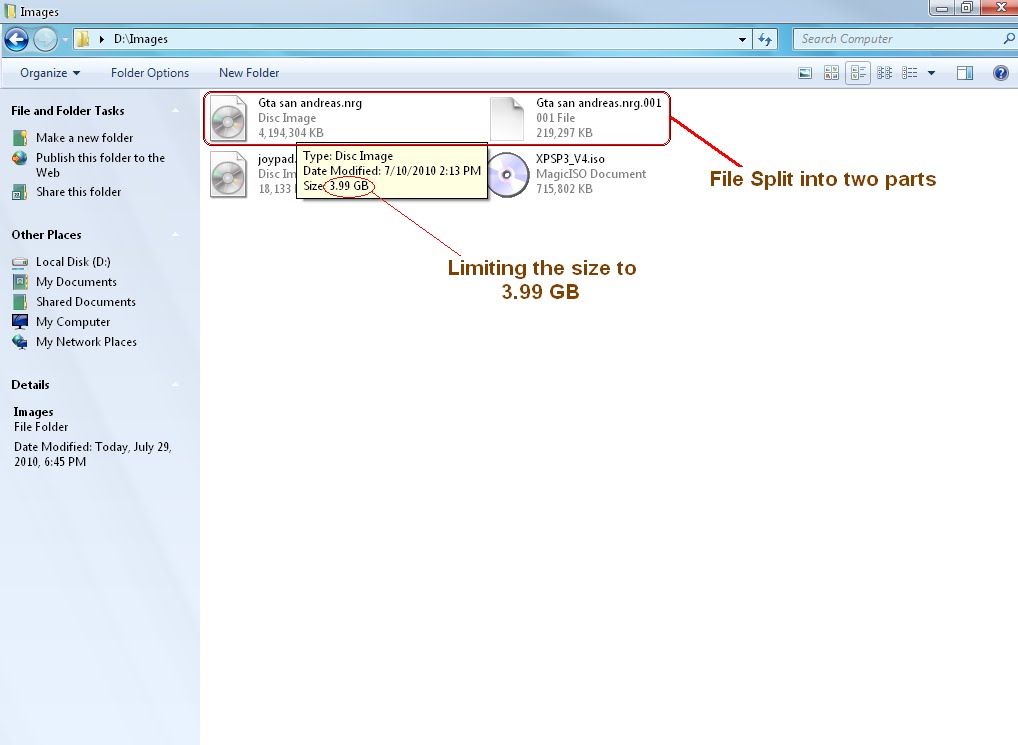
Here is a picture of the files larger than 4GB and how they are splitted in parts of 3.99GB in a FAT32 system:


Here's a list of file systems and their file size limits:

  • FAT12: 16MB
  • FAT16: 2GB
  • FAT32: 4GB minus 1 byte
  • exFAT/FAT64: 16ZB
  • NTFS: 16TB minus 64KB
  • NTFS5: 16 ExaBytes minus 1KB
sources: Microsoft support center

As this was my first blog, i apologize if i made a mistake in writting anything, and suggestions are alwayz welcomed... As of the blog i understand its too small, but i have been typing and posting everything through cellphone(since i m having a bandwidth problem), n u all must know how irritating its to type on a cellphone, yet i have tried to make the post a better one... Hope u like it...

Hard Disks: Advantage of SATA over IDE

Hi everyone! I had asked a question in SM Lab Session (I don't even exactly remember the question now!) And I was told to 'Google it & Blog it'. So here I am blogging about IDE & SATA: Advantage of SATA over IDE.

Every hard disk is interfaced in the motherboard through a disk controller. This disk controller is the one that plays bridge between the hard disk and the operating system. For the user to access data from the hard disk, there is a data bus connecting the hard disk and the motherboard. The data bus is like a pipe where bytes of data are being transmitted.

There are two kinds of data buses, Serial ATA and Parallel ATA, which are used in SATA hard disk and IDE hard disk respectively.
IDE is the abbreviation of Integrated Device Electronics. (The Parallel ATA was earlier called IDE. That
s why hard disks that use Parallel ATA are called IDE hard disks.)

SATA stands for Serial Advanced Technology Attachment.

The concept of the SATA was ratified by the ANSI (American National Standards Institute) in year of 2002.

ADVANTAGE OF SATA OVER IDE:

  • SATA has the capability to provide point to point channel communication between mother board and the drive. Where as in the IDE, the architecture of the master slave combination is supported on a single cable for the two drives it supports. (In the case of IDE, the controller allows the connection of 2 peripherals. The band-width is thus divided between the 2. This reduces the performances. On the other hand, in SATA, each hard disk is connected to its own controller via his own cable. This implies that there are no more bridging to configure for the main modes/slaves.)
  • The IDE hard disk drive uses the flat cable that has the width of around 18’’. But in the case of the Serial ATA a four wire cable is used that has a length of one meter. This is advantageous in comparison with the Parallel ATA (IDE) since the cables and the connectors that are used take less space than their counterparts in the Parallel ATA.
  • IDE platform is designed for normal / old computers, this way you transmit everything in parallel, and the IDE controller takes most of the work on transferring data.
    On Serial-ATA (SATA) the controller leaves most of the processing work to the CPU. (So if you have a small CPU you will prefer a IDE disk instead SATA, without mention that in old computers you will not have the SATA connector.)
  • IDE platform has it's top speed at 133 MB/s for ATA 133 (There is ATA 33, 66, 100 and 133) and for SATA you get 300 MB/s (SATA 1 have 150 MB/s, and SATA 300 MB/s).
  • Also, the SATA disk now are cheaper and bigger that any IDE disks.

Source: Various sites.
I have tried to be short & precise; have used simple language. Still queries n comments are welcome.

(PS: M blogging for the 1st time. please don't be too harsh!)

There are quite a few manufacturers that are producing different BIOS chips: Award, AMI, Phoenix, and IBM. Most commonly you can find AMIs, AWARDs and PHOENIXes. The BIOS is stored on a ROM chip.

These ROM BIOS chips can be of different measurements and look different from each other. Check out the following two types of chips. The one on the left is an AWARD (as stated on the sticker), while the one on the right is a Phoenix chip.